USB-C Docking Stations for MacBook: Best Picks & Reviews

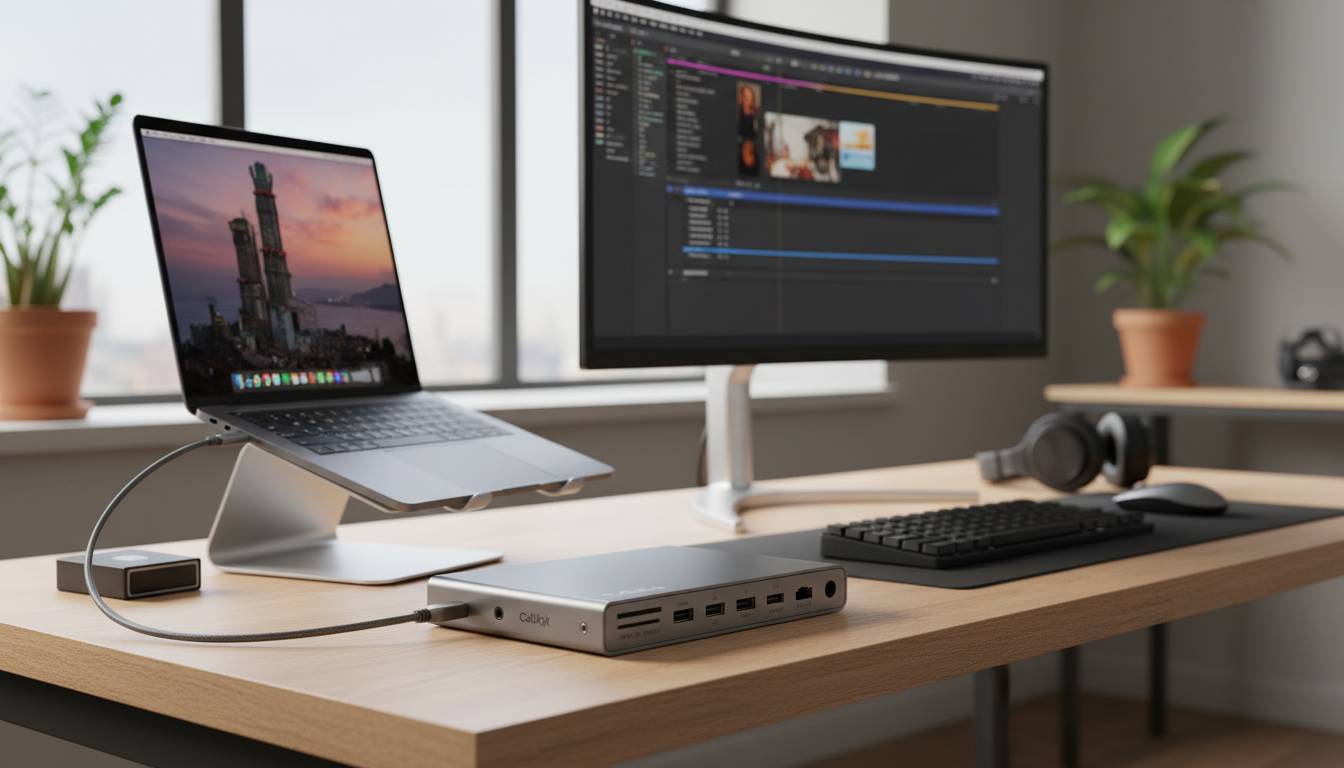
If you own a MacBook Air or MacBook Pro, you’ve likely encountered the frustrating reality of limited ports. Apple’s sleek laptops sacrifice connectivity for portability, leaving you constantly juggling adapters or unable to connect multiple devices simultaneously. A quality USB-C docking station transforms your streamlined MacBook into a full-fledged workstation with just one cable.
This guide covers everything you need to know about choosing the right docking station for your MacBook, from essential features and compatibility considerations to our top-rated recommendations for different use cases and budgets.
Why Your MacBook Needs a Docking Station
Modern MacBooks prioritize minimalism, but this design philosophy creates real workflow limitations. The MacBook Air with M3 ships with just two Thunderbolt/USB-C ports, while the 14-inch MacBook Pro offers three—none of which are the traditional USB-A ports still used by millions of peripherals worldwide.
A docking station solves this fundamental connectivity gap by consolidating multiple ports into a single USB-C connection. Instead of plugging in separate adapters for your monitor, keyboard, mouse, external hard drive, and ethernet cable, you connect one cable to your dock and everything else connects automatically.
The practical benefits extend beyond convenience:
- Single-cable workflow: Connect your MacBook to the dock when you arrive at your desk, and disconnect in seconds when you need to leave
- Monitor expansion: Most docks support dual or even triple monitor setups, something MacBooks struggle with natively
- Power delivery: Many docks charge your MacBook while in use, eliminating the need for a separate charger
- Peripheral consolidation: Use legacy USB-A devices, SD cards, and ethernet without sacrificing your USB-C ports
The productivity gains are substantial. Users who switch to dock-based workflows typically report saving 10-15 minutes daily on connection management alone—time that compounds significantly over a year of regular use.
What to Look for in a MacBook Docking Station
Not all docking stations work equally well with MacBooks. Apple devices have specific requirements and limitations that influence which dock provides the best experience.
Compatibility Considerations
Your MacBook’s processor determines display capabilities:
| Chip Generation | Max External Displays | Notes |
|---|---|---|
| M1/M2 (Base) | 1 display | Single external monitor limit |
| M1/M2 Pro/Max | 2 displays | Via Thunderbolt |
| M3 Pro/Max | 2 displays | Via Thunderbolt |
| M3 Max | 4 displays | Requires specific configuration |
The original M1 and M2 MacBook Air models face the most significant limitation—they officially support only one external display regardless of which dock you choose. If you need dual monitors with a base M1/M2 Air, look for docks with DisplayLink chips, which bypass Apple’s native limitations.
Power Delivery Requirements
Your dock should provide enough power to charge your MacBook, not merely maintain battery level:
- MacBook Air (M1/M2/M3): 30W minimum, 45W+ recommended
- MacBook Pro 14″ (M3/M3 Pro): 67W minimum
- MacBook Pro 14″ (M3 Max): 96W minimum
- MacBook Pro 16″: 96W minimum, 140W optimal
Under-powering your MacBook can result in slow charging or battery drain during heavy use.
Port Selection
Consider your specific needs:
| Port Type | Common Uses |
|---|---|
| HDMI 2.0/2.1 | External monitors |
| DisplayPort | Alternative monitor connection |
| USB-A (3.0/3.1) | Legacy peripherals, thumb drives |
| USB-C/Thunderbolt | Modern devices, passthrough charging |
| SD/microSD | Camera cards, file transfer |
| Ethernet | Stable wired internet |
| 3.5mm Audio | Headphones, speakers |
| Power Delivery | Charging connected devices |
Bandwidth Considerations
USB-C bandwidth affects what you can connect simultaneously:
- Thunderbolt 4 (40Gbps): Best for multiple 4K displays, fast data transfer
- USB-C 3.2 Gen 2 (10Gbps): Suitable for single 4K or dual 1080p displays
- USB-C 3.1 Gen 1 (5Gbps): Basic use, single display recommended
Bandwidth limitations become apparent when connecting multiple high-bandwidth devices. A dock with limited bandwidth might struggle to maintain 4K resolution on two monitors while transferring files through USB-A ports.
Best USB-C Docking Stations for MacBook
Based on our analysis of specifications, real-world performance, and user feedback, here are the top recommendations across different categories and use cases.
CalDigit TS4 — Best Overall
Price: $399 | Power Delivery: 98W | Ports: 18
The CalDigit TS4 represents the gold standard for MacBook docking stations. This Thunderbolt 4 dock delivers nearly everything power users need in a single device.
Key Features:
- Dual 4K display support (or single 8K)
- 98W power delivery charges even 16″ MacBook Pro
- Three USB-A ports (10Gbps), three USB-C ports
- SD and microSD card slots (UHS-II)
- 2.5Gb Ethernet
- Front-mounted 3.5mm audio combo jack
The TS4 excels in build quality and driver stability. Unlike some docks that require frequent troubleshooting, the CalDigit works reliably out of the box with MacBooks running macOS. The included 100W Thunderbolt cable ensures you get full performance.
Best for: Professionals who need maximum connectivity and reliability, including dual 4K monitor support.
CalDigit TS3 Plus — Best Value
Price: $249 | Power Delivery: 85W | Ports: 15
If the TS4 exceeds your budget, the CalDigit TS3 Plus remains an excellent choice. This Thunderbolt 3 dock offers most of the functionality at a lower price point.
Key Features:
- 85W power delivery (sufficient for 14″ MacBook Pro)
- Dual 4K display support
- Five USB-A ports, one USB-C port
- SD and microSD card slots
- Ethernet (1Gb)
The TS3 Plus provides 15 ports in a compact design. The trade-off compared to TS4 is slightly lower power delivery and older Thunderbolt 3 technology—but for most users, the difference is imperceptible in daily use.
Best for: Users seeking premium dock functionality at a more accessible price point.
Anker 777 — Best Budget Premium
Price: $199 | Power Delivery: 85W | Ports: 13
Anker’s 777 (also known as the Apex) offers impressive specifications at a competitive price. This Thunderbolt 4 dock delivers substantial capability without the premium pricing.
Key Features:
- 85W power delivery
- Dual 4K @ 60Hz support
- Two HDMI ports (unusual in this price range)
- USB-A and USB-C ports
- Ethernet, SD card slot
The standout feature is dual HDMI ports, which simplify dual-monitor setups for users whose monitors use HDMI rather than DisplayPort. The 100W Thunderbolt cable is included.
Best for: Budget-conscious professionals who need dual 4K support without spending $400+.
Kensington SD2500T — Best for Business
Price: $329 | Power Delivery: 85W | Ports: 12
Kensington targets business users with the SD2500T, emphasizing security features and enterprise reliability.
Key Features:
- Thunderbolt 4 connectivity
- 85W power delivery
- Dual 4K support
- Security lock slot (Kensington lock)
- VESA mount compatible
- Three-year warranty
The included security features and VESA mounting option make this ideal for shared workspaces or hot-desking environments. Kensington’s reputation for enterprise durability adds peace of mind for corporate deployments.
Best for: Business environments, shared workstations, and users who value security features.
Elgato Thunderbolt 4 — Best Compact
Price: $299 | Power Delivery: 90W | Ports: 12
Elgato (part of Corsair) designed the Thunderbolt 4 Dock with minimal desk footprint in mind while maintaining full functionality.
Key Features:
- Compact, low-profile design
- 90W power delivery
- Dual 4K support
- Front-facing ports for easy access
- Solid build quality
The horizontal design takes up less desk space than vertical towers. Elgato’s ecosystem integration appeals to content creators already using Stream Deck or other Elgato accessories.
Best for: Users with limited desk space, streamers, and content creators.
Plugable USBC-TBT4 — Best for M1/M2 MacBook Air
Price: $249 | Power Delivery: 96W | Ports: 12
The Plugable USBC-TBT4 addresses a specific pain point: connecting dual monitors to M1 and M2 MacBook Air models, which have single-display limitations.
Key Features:
- Uses DisplayLink technology to support dual 4K displays
- 96W power delivery
- Thunderbolt 4 upstream
- USB-A ports, SD card slot
- Ethernet
The DisplayLink chip enables dual monitor support regardless of your MacBook’s native capabilities. This makes it the go-to choice for base M1/M2 MacBook Air users who need two external displays.
Best for: M1/M2 MacBook Air owners requiring dual monitor support.
How to Set Up Your Docking Station
Setting up a USB-C docking station involves physical connections and software configuration. Follow these steps for optimal performance.
Physical Connection
- Position your dock: Place the dock within cable reach of your MacBook and your peripherals. Ensure adequate ventilation.
- Connect power: Plug the dock’s power adapter into an outlet first, then connect to the dock.
- Connect monitors: Plug display cables (HDMI, DisplayPort, or Thunderbolt) into the dock before connecting to your MacBook.
- Add peripherals: Connect keyboards, mice, external drives, and other devices to available ports.
- Connect to MacBook: Finally, connect the Thunderbolt cable to your MacBook.
macOS Configuration
- Allow accessibility: On first connection, macOS may prompt for accessibility permissions. Grant these in System Settings > Privacy & Security > Accessibility.
- Display arrangement: Go to System Settings > Displays > Arrangement to configure monitor positions and primary display.
- Power settings: Verify your MacBook is charging via the battery icon in the menu bar.
- Eject properly: Always use the eject button in the sidebar before disconnecting to prevent data loss from external drives.
Troubleshooting Common Issues
| Issue | Solution |
|---|---|
| Monitor not detected | Check cable connections, try different port on dock |
| Slow charging | Verify power delivery meets MacBook requirements |
| Devices not recognized | Disconnect and reconnect, restart MacBook |
| DisplayLink not working | Install/update DisplayLink Manager app |
| Dock not powering on | Check power adapter connection, try different outlet |
Common Mistakes to Avoid
Mistake #1: Choosing Inadequate Power Delivery
Selecting a dock that doesn’t provide enough power to charge your MacBook creates ongoing frustration. Your laptop will drain while in use, defeating the purpose of a desktop replacement setup.
Solution: Match power delivery to your MacBook model. The 14″ MacBook Pro requires at least 67W; the 16″ model needs 96W or more.
Mistake #2: Ignoring Bandwidth Limitations
Connecting multiple high-bandwidth devices to a budget dock often results in degraded performance—laggy displays, slow file transfers, or dropped connections.
Solution: Ensure your dock matches your performance needs. Thunderbolt 4 docks handle demanding setups better than USB-C 3.1 alternatives.
Mistake #3: Not Verifying Display Support
Assuming any dock supports dual monitors with your specific MacBook can lead to disappointment. M1/M2 MacBook Airs have documented limitations.
Solution: Confirm your MacBook’s capabilities and choose a DisplayLink-enabled dock if you need more displays than native support allows.
Mistake #4: Cheap Cables
The included or chosen Thunderbolt cable matters significantly. Low-quality cables limit bandwidth, cause connectivity issues, or fail to deliver sufficient power.
Solution: Use the cable included with your dock, or purchase a certified Thunderbolt 4 cable rated for your needs.
Frequently Asked Questions
Can I use any USB-C dock with my MacBook?
Not all docks work optimally with MacBooks. You should choose a Thunderbolt 3 or Thunderbolt 4 dock for the best compatibility and performance. USB-C docks without Thunderbolt may work but often have limited bandwidth or display capabilities.
Will a docking station overcharge my MacBook?
No, modern docking stations with power delivery communicate with your MacBook to deliver the appropriate charging voltage. Your MacBook’s internal charging circuitry prevents overcharging, regardless of the dock’s power delivery rating.
Can I use a docking station with a MacBook that has only USB-C ports (no Thunderbolt)?
Yes, you can use USB-C docks with any MacBook that has USB-C ports. However,Thunderbolt docks offer superior performance. For MacBooks without Thunderbolt (older models or base M1/M2 Air), ensure the dock specifically supports your display requirements.
Do docking stations work with MacBooks closed?
Yes, most docking stations work with your MacBook in closed-display mode. Your MacBook will remain powered and functional while driving your external monitors, keyboard, and mouse. This is the standard “clamshell mode” configuration.
Do I need to install drivers for my docking station?
Most Thunderbolt docks work without additional drivers on modern macOS versions. However, docks using DisplayLink technology for extended display support require the DisplayLink Manager application. Check your dock’s documentation for specific requirements.
Can I daisy-chain multiple devices through my docking station?
Yes, Thunderbolt docks support daisy-chaining. You can connect additional Thunderbolt devices (external drives, additional monitors) through your dock’s downstream Thunderbolt ports. However, bandwidth limitations apply, so performance may vary with multiple chained devices.
Conclusion
A quality USB-C docking station transforms your MacBook from a limited-port laptop into a full desktop workstation. The right dock eliminates daily cable clutter, enables multi-monitor productivity, and simplifies your workflow through single-cable connectivity.
For most users, the CalDigit TS4 delivers the best overall experience with its comprehensive port selection, 98W power delivery, and proven reliability. If budget is a primary concern, the CalDigit TS3 Plus or Anker 777 offer excellent value without significant compromises.
M1/M2 MacBook Air users seeking dual monitor support should prioritize the Plugable USBC-TBT4 and its DisplayLink technology, which overcomes Apple’s native single-display limitation.
Whatever your choice, ensure your dock matches your specific MacBook model, power requirements, and connectivity needs. The right docking station becomes an invisible productivity partner—once set up, it seamlessly handles your workspace connection so you can focus on your actual work.