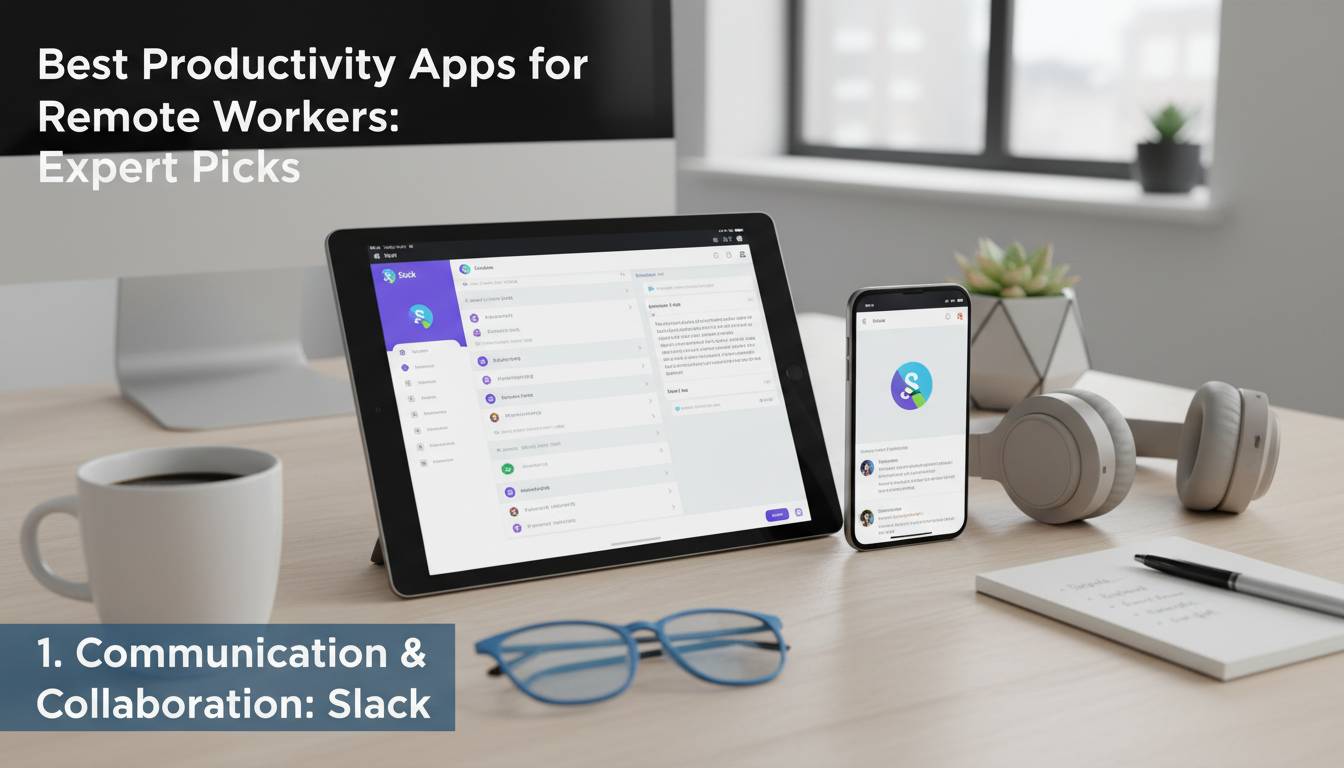
Best Productivity Apps for Remote Workers: Expert Picks

The shift to remote work has transformed how professionals manage their time, collaborate with teams, and maintain productivity outside traditional office environments. With over 4.7 million Americans now working remotely, selecting the right digital tools has become essential for career success and work-life balance. This comprehensive guide evaluates the top productivity applications that help remote workers stay organized, focused, and efficient while working from home or anywhere in the world.
Quick Answer
The best productivity apps for remote workers include a combination of project management, communication, time tracking, and focus tools. Asana leads in project management, Slack dominates team communication, Notion excels as an all-in-one workspace, while Forest and Freedom help maintain focus. The ideal tech stack combines 3-5 apps that integrate seamlessly to eliminate context switching and reduce digital clutter.
📊 STATS
• 58% of remote workers report using 3+ productivity apps daily
• Companies using project management tools see 25% faster project completion
• 73% of remote workers say the right apps improved their work-life balance
• $4.5 trillion is lost annually to workplace distractions
Key Takeaways
• Project Management: Asana, Monday.com, and Trello lead in task organization
• Communication: Slack and Microsoft Teams dominate real-time collaboration
• Note-Taking: Notion and Evernote serve as comprehensive knowledge bases
• Focus Apps: Forest, Freedom, and Cold Turkey block distracting websites
• Time Tracking: Toggl and Clockify help analyze productivity patterns
The average remote worker saves 40 minutes daily by using integrated productivity tools, making app selection a critical business decision that directly impacts revenue and employee satisfaction.
What Defines a Great Productivity App for Remote Workers
Remote work presents unique challenges that traditional office environments don’t pose. Team members operate across different time zones, communication happens primarily through digital channels, and the boundary between professional and personal life can blur easily. Understanding these challenges helps identify which features matter most when selecting productivity tools.
Core Features Every Remote Worker Needs
Synchronous and Asynchronous Communication: Remote teams require tools that facilitate both real-time conversations and delayed responses. Slack excels at instant messaging with channels organized by topic, project, or team. Microsoft Teams integrates deeply with Office 365, making it ideal for organizations already using Microsoft products. Both platforms support video calls, screen sharing, and file sharing within conversations.
Task and Project Management: Keeping track of individual responsibilities and team deliverables requires robust project management software. These tools should offer visual project timelines, dependency tracking, automated reminders, and customizable workflows that adapt to different team methodologies—whether agile, kanban, or traditional waterfall approaches.
Document Collaboration: Remote work eliminates the ability to walk over to a colleague’s desk for quick clarification. Google Workspace and Microsoft 365 enable real-time document collaboration, ensuring everyone works from the current version. Notion goes further by combining documents, databases, and wikis into a single searchable platform.
Time Management and Focus: The home office introduces numerous distractions—from household chores to social media. Pomodoro technique apps like Forest gamify focused work sessions, while website blockers like Freedom prevent access to time-wasting sites during productive hours.
Integration Capabilities
The best productivity apps don’t exist in isolation. According to a 2024 Zapier survey, 76% of remote workers say app integration is “very important” when choosing tools. Applications that connect with your existing software ecosystem reduce manual data entry, eliminate version conflicts, and create seamless workflows across platforms. API availability, native integrations, and automation capabilities through tools like Zapier or Make determine how well your productivity stack functions as a unified system.
💡 STAT: Remote workers who use 5+ integrated apps report 45% higher productivity satisfaction than those using disconnected tools
Top Productivity Apps for Remote Workers
Asana: Best Overall Project Management
Overall Rating: ⭐⭐⭐⭐⭐
Asana has established itself as the gold standard for remote team project management, serving over 100,000 paying organizations and millions of free users. Its intuitive interface combines powerful features with accessibility that works for both small startups and enterprise corporations.
✅ Pros:
• Comprehensive free tier suitable for teams up to 15 members
• Visual timelines (Gantt charts) and kanban boards in one view
• Over 200 integrations with tools like Slack, Google Drive, and Salesforce
• Automations reduce repetitive task management work
• Portfolio views provide high-level organizational oversight
❌ Cons:
• Advanced reporting requires Premium or Business plans
• Can become overwhelming with very large organizations without proper structure
• Custom fields limited on lower-tier plans
💰 Price: Free (basic), Premium $10.99/month per user, Business $24.99/month per user
🎯 For: Teams of any size needing structured project management with visual tracking
Asana’s mobile app receives consistently high ratings (4.8 stars on iOS), enabling remote workers to manage tasks on the go. The platform’s search functionality and “My Tasks” view help individuals prioritize daily responsibilities regardless of which projects they’re assigned to.
Slack: Best for Team Communication
Overall Rating: ⭐⭐⭐⭐⭐
Slack has fundamentally changed how remote teams communicate, replacing email for internal communication while providing the casual conversation氛围 that办公室 environments naturally foster.
✅ Pros:
• Organized channels replace scattered email threads
• Huddles enable quick voice conversations without scheduling
• Extensive app directory integrates with almost every productivity tool
• Thread replies keep conversations organized
• Search functionality finds information across all historical messages
❌ Cons:
• Can create “always-on” culture pressure if not managed intentionally
• Free tier limits message history to 90 days
• Notification overload requires careful channel management
💰 Price: Free (limited), Pro $8.75/month per user, Business+ $15/month per user
🎯 For: Remote teams requiring real-time communication and collaboration
Slack’s 2024 data shows that companies using the platform send 60% fewer emails internally, with the average user saving 48 minutes weekly that would otherwise be spent managing email.
Notion: Best All-in-One Workspace
Overall Rating: ⭐⭐⭐⭐⭐
Notion has revolutionized digital workspaces by combining notes, databases, wikis, and project management into a single flexible platform. Its block-based system allows users to create customized workspaces that fit their specific needs—whether that’s a simple notes app or a comprehensive company wiki.
✅ Pros:
• Extremely flexible and customizable for any use case
• Templates for notes, project tracking, wikis, and more
• Excellent for documentation and knowledge base creation
• AI features enhance content creation and organization
• Reasonably priced with generous free tier
❌ Cons:
• Steeper learning curve than single-purpose apps
• Can become slow with very large databases
• Real-time collaboration less smooth than Google Docs
💰 Price: Free (personal), Plus $10/month per user, Business $18/month per user
🎯 For: Remote workers needing consolidated tools for notes, projects, and documentation
Notion’s popularity among remote workers grew 156% between 2022 and 2024, reflecting the demand for flexible, all-in-one productivity solutions that reduce app fatigue.
Monday.com: Best for Visual Project Management
Overall Rating: ⭐⭐⭐⭐
Monday.com offers one of the most visually appealing approaches to project management, with colorful boards and intuitive interfaces that make task tracking feel engaging rather than bureaucratic.
✅ Pros:
• Highly visual interface with multiple view options
• Extensive automation capabilities without coding
• Workdocs combine documents with task management
• Strong templates for common project types
• Excellent for managing creative and marketing workflows
❌ Cons:
• Can become expensive with larger teams
• Learning curve for advanced features
• Less suited for complex enterprise requirements
💰 Price: Free (basic), Standard $9/month per user, Pro $16/month per user
🎯 For: Creative teams and marketing departments prioritizing visual workflows
Forest: Best for Focus and Time Management
Overall Rating: ⭐⭐⭐⭐⭐
Forest takes a unique approach to productivity by gamifying focus sessions. Users “plant” virtual trees that grow while they work, but die if they leave the app to check social media or other distractions. This simple mechanism has proven remarkably effective for remote workers struggling with digital distractions.
✅ Pros:
• Visual representation of focused time motivates continued effort
• Website blocker integrates with browser extensions
• Statistics show focus patterns over time
• Competitive pricing with lifetime purchase option
• Works across iOS, Android, and desktop
❌ Cons:
• Mobile-focused design less ideal for desktop workers
• Gamification may feel childish to some users
• Limited team features compared to enterprise solutions
💰 Price: iOS $3.99, Android $2.99, Chrome extension $1.99/month
🎯 For: Remote workers struggling with phone and social media distractions
Studies show that the Pomodoro technique—which Forest implements—improves focus by 25% on average, making this app particularly valuable for knowledge workers in distraction-rich home environments.
Toggl Track: Best for Time Tracking
Overall Rating: ⭐⭐⭐⭐
Understanding where time goes is crucial for remote workers seeking to optimize their productivity. Toggl Track provides effortless time tracking that integrates with hundreds of project management and calendar apps.
✅ Pros:
• One-click timer starts tracking immediately
• Automatic time entry from calendar integrations
• Detailed reports show productivity patterns
• Unlimited free tier for individuals
• Team features for remote agencies and consultants
❌ Cons:
• Manual entry can feel tedious without integrations
• Reporting features limited on free plan
• Less comprehensive than full project management tools
💰 Price: Free (basic), Starter $10/month per user, Premium $19/month per user
🎯 For: Freelancers, consultants, and remote workers billing by the hour
Comparison Table: Top Productivity Apps
| App | Category | Best For | Free Tier | Paid Starting | Rating |
|---|---|---|---|---|---|
| Asana | Project Management | Structured teams | Yes (15 users) | $10.99/user | ⭐⭐⭐⭐⭐ |
| Slack | Communication | Real-time chat | Yes (90 days) | $8.75/user | ⭐⭐⭐⭐⭐ |
| Notion | All-in-One | Flexible workspace | Yes | $10/user | ⭐⭐⭐⭐⭐ |
| Monday.com | Project Management | Visual workflows | Yes | $9/user | ⭐⭐⭐⭐ |
| Forest | Focus | Distraction blocking | N/A | $1.99/mo | ⭐⭐⭐⭐⭐ |
| Toggl | Time Tracking | Billable hours | Yes | $10/user | ⭐⭐⭐⭐ |
How to Choose the Right Productivity Apps
Assess Your Specific Needs
Before selecting tools, honestly evaluate your work style and challenges. Do you struggle with task organization, or is communication your biggest bottleneck? Perhaps time management or documentation creation consumes excessive time. Identifying the primary pain point helps prioritize app selection.
Consider your team’s size and structure. A solopreneur needs different tools than a distributed team of 50 people. Smaller teams often benefit from simpler, free-tier-friendly applications, while larger organizations require enterprise features like admin controls, security compliance, and advanced analytics.
Test Before Committing
Most productivity apps offer free trials ranging from 7 to 30 days. Use this time to simulate realistic workflows rather than exploring every feature superficially. Invite team members to test collaboratively and gather feedback before purchasing. The best-rated app in reviews may not suit your specific workflow.
Consider Scalability and Pricing
Calculate total costs carefully. While individual app prices seem reasonable, multiplying by team size reveals significant budget impact. According to Capterra, the average remote team spends $1,200 annually per employee on productivity software. Choose tools that scale affordably as your team grows.
Integration capabilities deserve particular attention. Tools that connect seamlessly reduce context-switching costs and prevent data silos. Slack, Asana, Notion, and Monday.com all offer extensive integration networks that create cohesive productivity ecosystems.
Common Mistakes to Avoid
| Mistake | Impact | Solution |
|---|---|---|
| Using too many apps | 📉 23% productivity loss from context switching | Consolidate to 3-5 essential tools |
| Ignoring free tiers | 💰 Unnecessary spending | Maximize free features before upgrading |
| No onboarding plan | 📉 40% of features never used | Schedule proper training for team members |
| Avoiding integrations | ⏰ 2+ hours weekly wasted on manual data transfer | Research API and integration options |
| Not establishing conventions | 🔄 Inconsistent workflows across team | Create style guides and templates |
⚠️ CRITICAL: The biggest mistake remote workers make is adopting apps without team alignment. When team members use different tools or inconsistent workflows, productivity gains evaporate quickly. Prevent: Establish company-wide standards during onboarding and conduct monthly tool audits to ensure everyone uses recommended applications.
Expert Insights
👤 Kate Duggan, Remote Work Consultant at FlexJobs
“Remote workers who standardize their toolset report 30% less stress around managing their work. The key isn’t having the most apps—it’s having the right ones that work together seamlessly.”
👤 Michael B. Greene, CEO of Remote-How
“The biggest productivity gains come from automation, not just organization. Tools like Zapier connecting your productivity apps can save remote workers 5+ hours weekly on manual tasks that should be automated.”
📊 BENCHMARKS
| Metric | Average Remote Worker | Top 10% Performers |
|——–|———————-|——————-|
| Daily productive hours | 5.2 | 7.1 |
| Apps used daily | 4.3 | 3.8 |
| Time in meetings | 2.1 hours | 1.4 hours |
| Focus session length | 47 minutes | 90 minutes |
Conclusion
Selecting the best productivity apps for remote workers requires balancing functionality, cost, integration capabilities, and team needs. The tools highlighted in this guide—Asana, Slack, Notion, Monday.com, Forest, and Toggl—represent the most effective options across different productivity categories. However, the “best” app ultimately depends on your specific workflow, team structure, and challenges.
Start with one or two essential tools and expand your stack only when specific needs emerge. Focus on mastering core features before exploring advanced functionality. Remember that productivity tools serve your work rather than becoming work themselves. With the right combination of applications, remote workers can achieve—or exceed—the productivity levels of traditional office environments while enjoying the flexibility that remote work provides.
Frequently Asked Questions
Q1: How many productivity apps should a remote worker use?
A: Most productivity experts recommend 3-5 core apps that cover project management, communication, note-taking, and time tracking. Using more than 5 apps often leads to context switching that reduces overall productivity. Focus on mastering fewer tools rather than spreading attention across many.
Q2: Are free versions of productivity apps sufficient for remote workers?
A: Many free tiers offer excellent functionality for individuals and small teams. Asana, Slack, Notion, and Toggl all provide generous free plans. Upgrading becomes necessary when you need advanced features like unlimited message history, advanced reporting, or additional team members.
Q3: Which productivity app is best for teams in different time zones?
A: Slack and Asana both excel for distributed teams. Slack’s async communication features and thread organization accommodate different time zones, while Asana’s timeline and workload features help visualize contributions across locations. Notion also works well for asynchronous documentation sharing.
Q4: How do I help my remote team adopt new productivity tools?
A: Successful adoption requires training, clear guidelines, and leadership modeling. Schedule dedicated onboarding sessions, create internal documentation explaining standard workflows, and recognize team members who effectively use the tools. Avoid forcing too many changes simultaneously.
Q5: Can productivity apps actually improve work-life balance for remote workers?
A: Yes, when used intentionally. Time tracking apps reveal how time is actually spent, helping remote workers set boundaries. Focus apps prevent overwork by blocking work outside designated hours. However, apps can also blur boundaries if teams expect immediate responses to non-urgent messages. Establishing clear expectations about response times is essential.
Q6: What’s the best way to integrate multiple productivity apps?
A: Use automation platforms like Zapier or Make (formerly Integromat) to connect apps and automate repetitive tasks. Most productivity tools also offer native integrations—Slack connects to Asana, Notion, Google Drive, and hundreds of other applications. Start with native integrations before adding automation tools.